

Cario Tip of the Week: You Can Switch Between Classic and Grouped View in Booking/Manifest History
08 July 2026

Did you know you can switch between Classic View and Grouped View in Cario’s Booking/Manifest History screen? Grouped View helps users quickly identify pickups versus manifests, review related records together, print consolidated manifests, and spot transfer statuses more easily with clear colour-coded indicators.
Did You Know? You Can Switch Between Classic and Grouped View in Booking/Manifest History
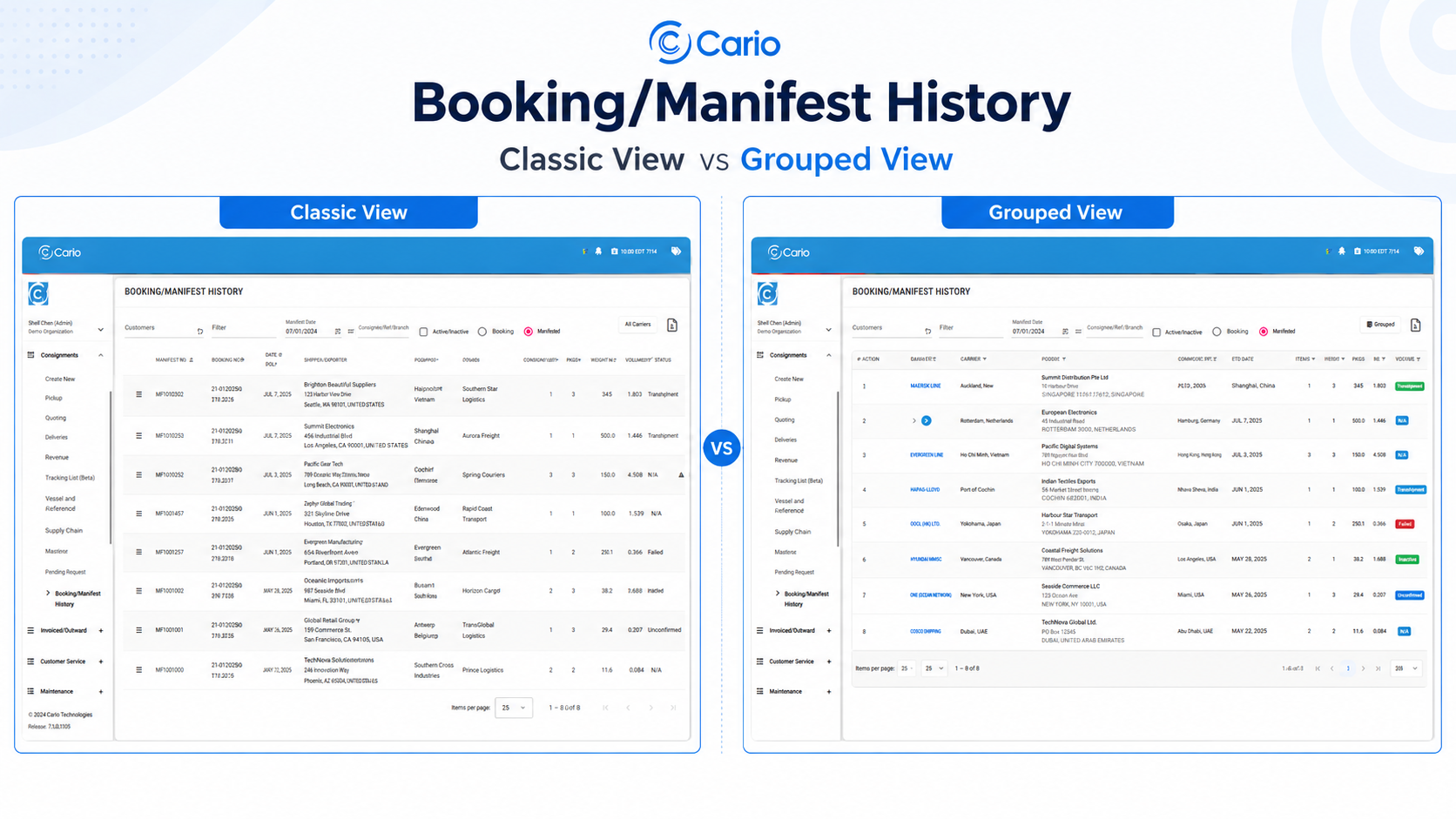
The Booking/Manifest History screen in Cario gives teams a central place to review previous bookings and manifests, check transfer status, reprint documents, and manage completed freight activity.
But did you know you can now switch between Classic View and Grouped View?
This gives users a clearer way to review manifest history depending on how they prefer to work.
What is Classic View?
Classic View displays booking and manifest history in a standard list format.
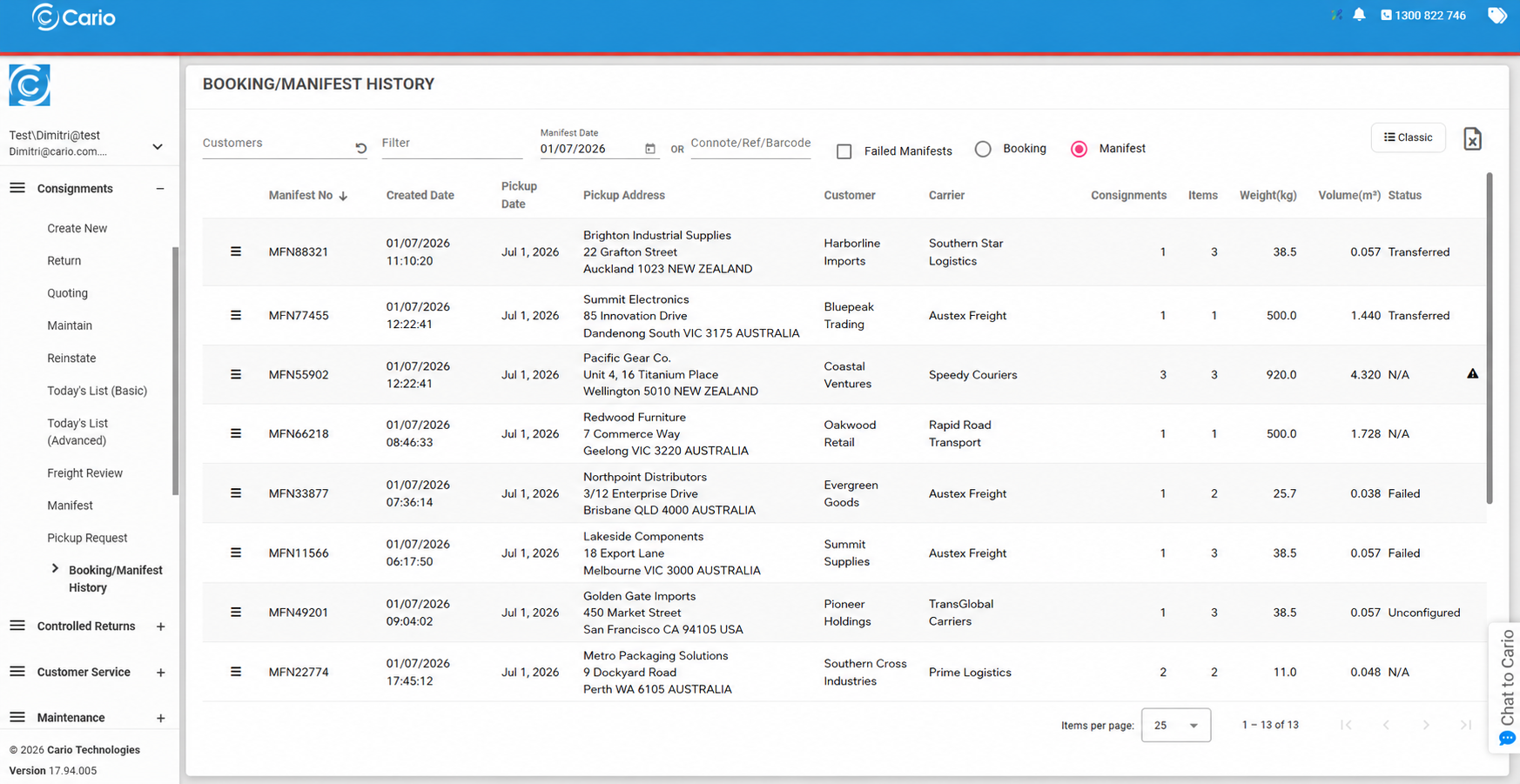
This view is useful when you want to review each manifest record individually, including details such as:
- Manifest number
- Created date
- Pickup date
- Pickup address
- Customer
- Carrier
- Number of consignments
- Items
- Weight
- Volume
- Status
Classic View is ideal when you want a traditional table-style view of all manifest records in one list.
What is Grouped View?
Grouped View provides a more structured view by grouping related booking and manifest activity together.
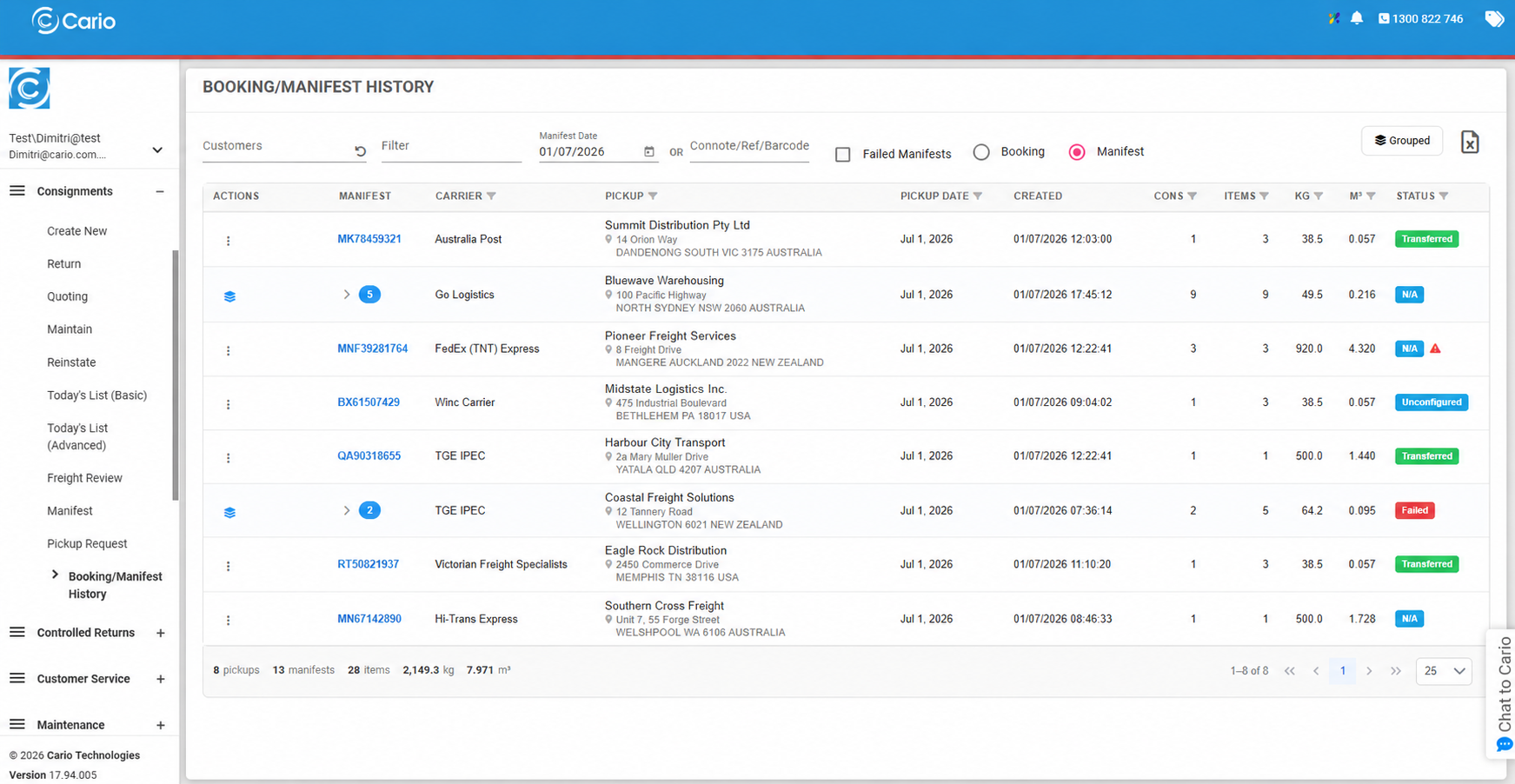
This makes it easier to quickly identify:
- Pickups versus individual manifests
- How many manifests sit under a pickup
- Which carrier the grouped movement relates to
- Manifest status at a glance
- Related consignments under the same grouped movement

Where there are multiple related records, the grouped row can be expanded so users can see the individual manifest or consignment records underneath.
Why does Grouped View matter?
Grouped View helps make the Booking/Manifest History screen easier to read, especially when there are multiple manifests or related consignments for the same pickup activity.
Instead of scanning through a long list of separate rows, users can quickly identify the grouped pickup or manifest activity, expand the relevant section, and review the related records underneath.
This can be especially useful for operations teams who need to quickly understand what was booked, what was manifested, and which records may need follow-up.
Print consolidated manifests more easily
Grouped View also allows users to access a Consolidated Manifest action where applicable.
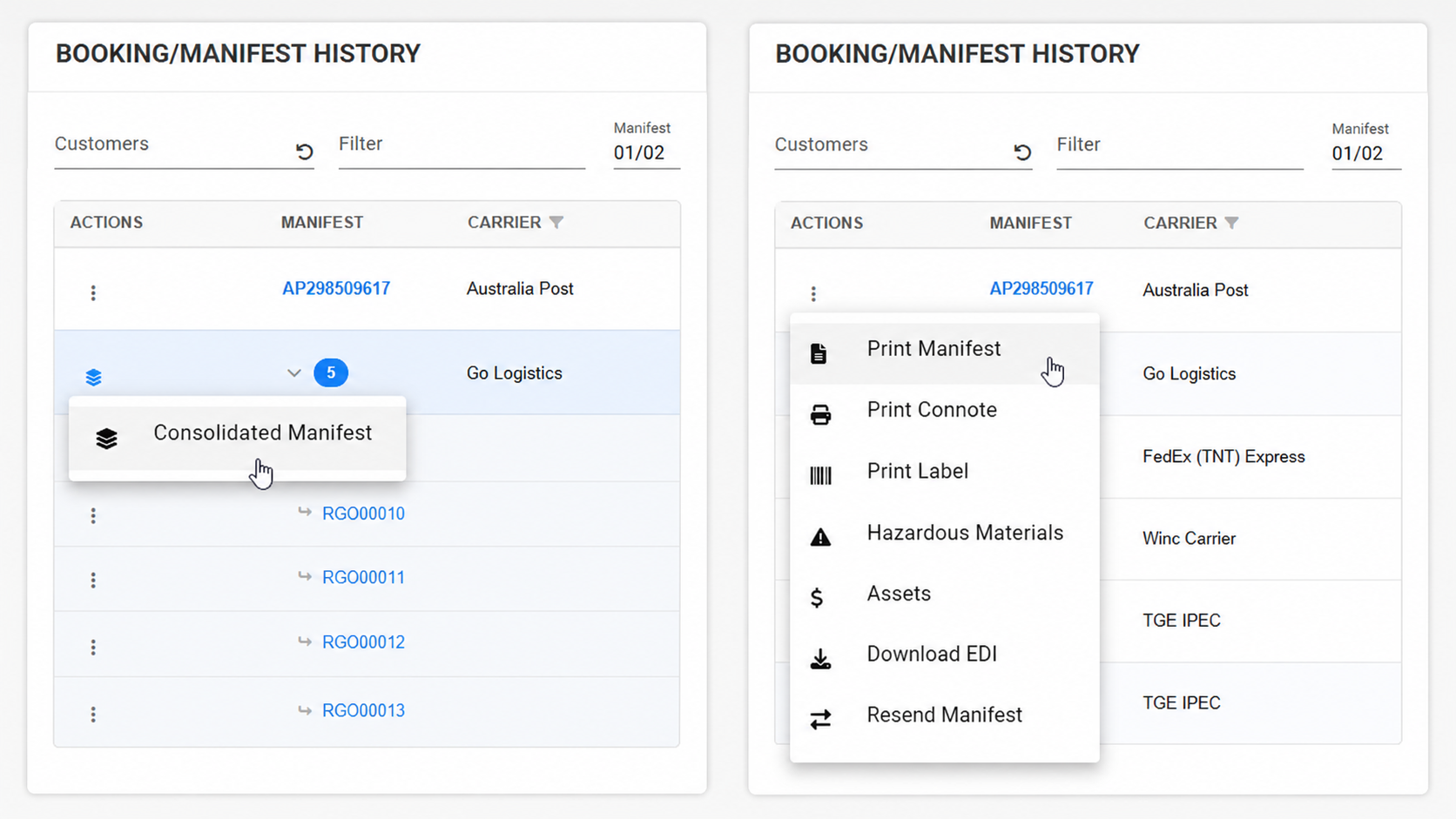
This is useful when multiple manifests or consignments are grouped together and need to be printed as one consolidated document.
Instead of printing each manifest separately, users can use the grouped action to print the consolidated manifest together.
Clearer status visibility
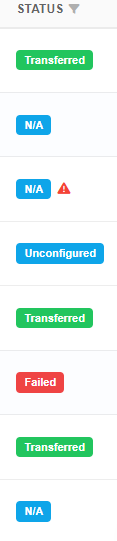
The Booking/Manifest History screen also provides clear, colour-coded status indicators to help users quickly understand the state of each manifest.
Examples include:
- Transferred — shown in green when the manifest has transferred successfully
- Failed — shown in red when there is an issue that needs attention
- N/A — shown in blue where a transferred status is not applicable
- Unconfigured — shown where setup or configuration may need review
This makes it easier to quickly spot which manifests have processed successfully and which ones may require action.
How to switch between Classic and Grouped View
From the Booking/Manifest History screen:
- Go to Consignments.
- Select Booking/Manifest History.
- Use the view toggle in the top-right corner of the screen.
- Select Grouped to change from Classic View to Grouped View.
- Select Classic to switch back to the standard table view.
What can you do from this screen?
From Booking/Manifest History, users can also access common manifest actions, including:
- Print Manifest
- Print Connote
- Print Label
- View Hazardous Materials
- View Assets
- Download EDI
- Resend Manifest
- Print Consolidated Manifest, where available in Grouped View
When should you use Grouped View?
Grouped View is helpful when you want to:
- Review pickups and related manifests together
- Quickly identify how many manifests belong to a grouped activity
- Print a consolidated manifest
- Reduce visual clutter in the manifest history list
- Check which manifests have transferred, failed, or require review
- Investigate grouped freight activity more efficiently
Classic View vs Grouped View
Use Classic View when you want a detailed row-by-row list of manifest records.
Use Grouped View when you want a clearer operational summary that groups related pickup and manifest activity together.
Both views are available so teams can choose the layout that best suits the way they work.
Work smarter with Booking/Manifest History
The new Grouped View gives teams a cleaner and more flexible way to review manifest history in Cario.
By grouping related records, making pickup and manifest activity easier to identify, supporting consolidated manifest printing, and keeping statuses visible through clear colour coding, the Booking/Manifest History screen can help users review and manage completed freight activity with greater confidence.